- Introduction
Introduction
Image File Execution Options (IFEO), originally intended for debugging and troubleshooting, allows specifying a "debugger" program to be launched whenever a particular executable runs. In Debug Object Hijacking, adversaries abuse IFEO's debugger function to hijack the execution flow of trusted applications, causing malicious code to run instead.
Exploiting IFEO for Persistence
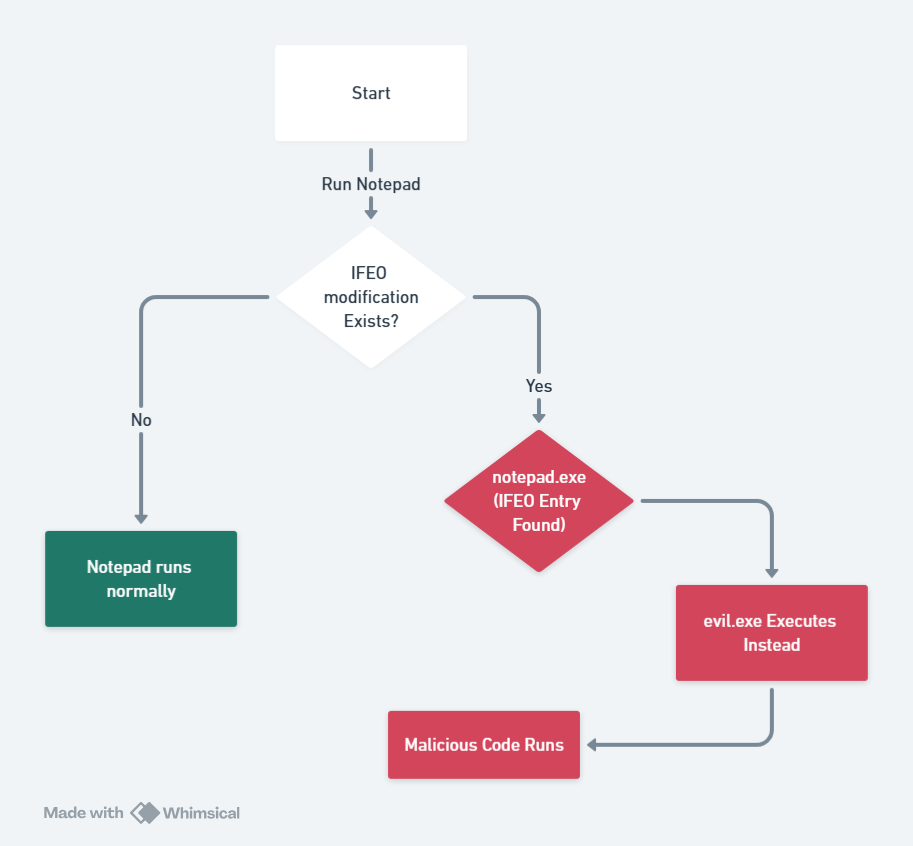
Image File Execution Options is a registry-based configuration that developers use to attach debuggers or modify execution behavior of programs. When a process is created, Windows checks if an IFEO entry exists for that program. If a Debugger value is set under the program’s IFEO registry key, the system will launch the specified debugger program instead of the target application. In effect, any attempt to run the original executable will invoke the attacker’s chosen program.
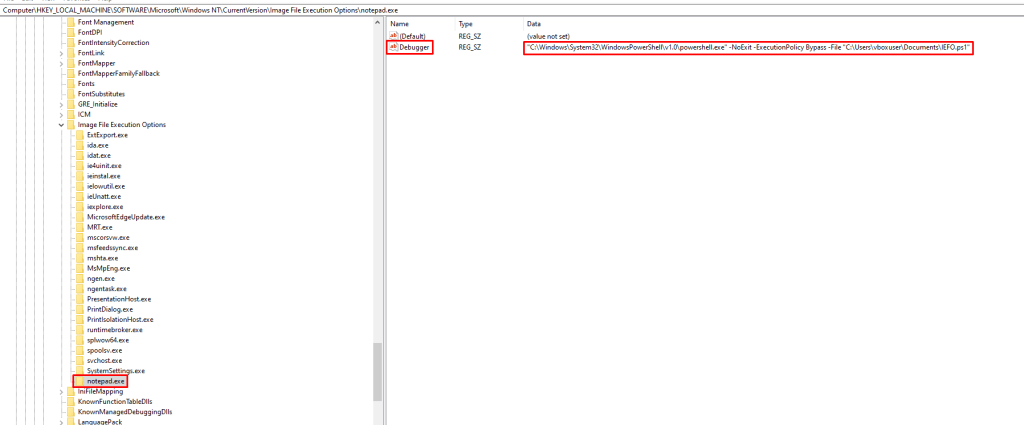
notepad.exe is set to execute a malicious binary (C:\malware\evil.exe) instead of the legitimate process.Registry Location
HKLM\SOFTWARE\Microsoft\Windows NT\CurrentVersion\Image File Execution Options (with a subkey named after the target executable). On 64-bit systems, entries for 32-bit executables appear under the Wow6432Node sub-path.
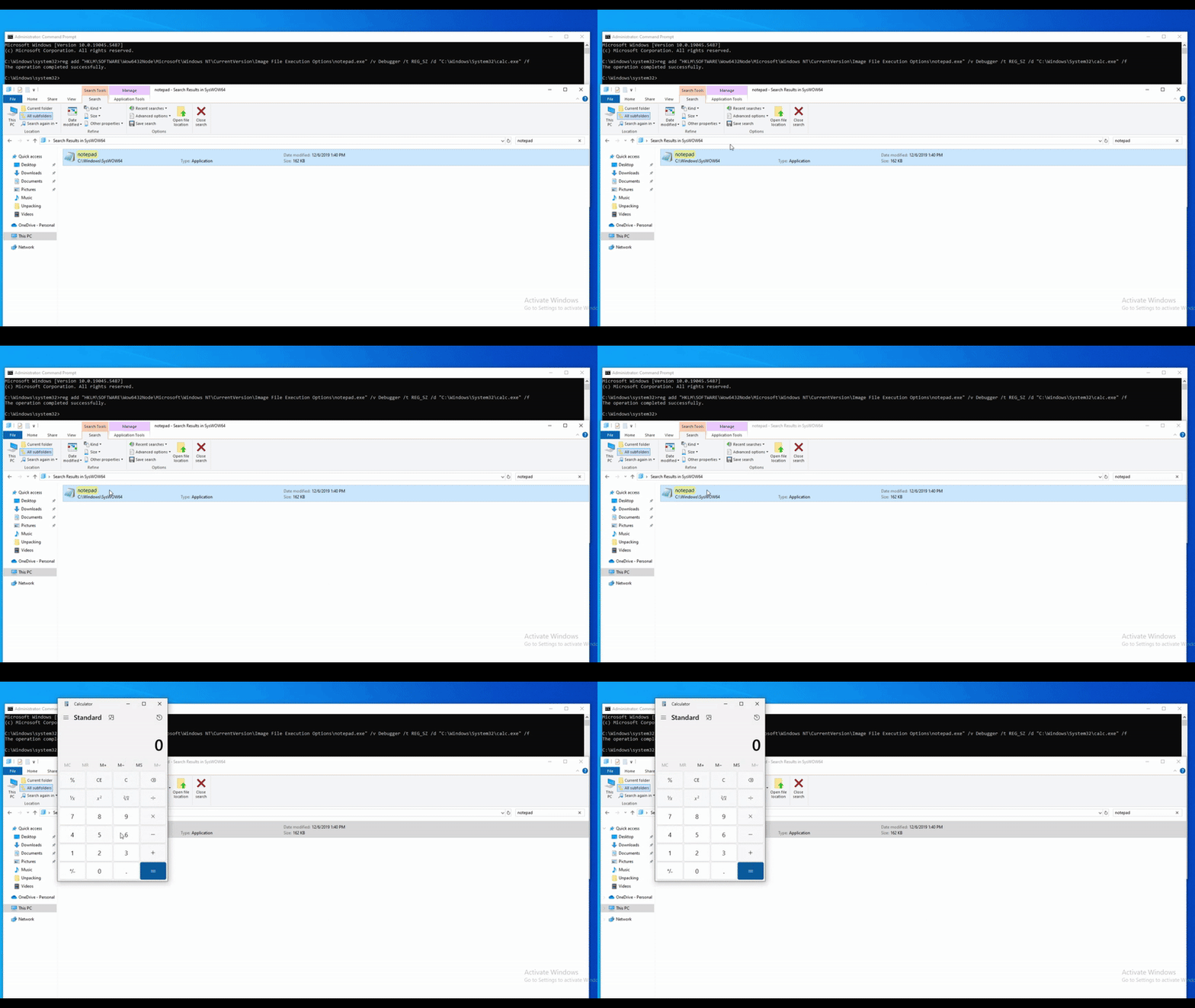
reg add command to replace Notepad execution with Calculator.Debugger Value Abuse
Under the executable's IFEO subkey, attackers add a Debugger value (type REG_SZ) pointing to their malicious executable. For example, a malware could create a subkey for notepad.exe and set its Debugger to "C:\malware\evil.exe". Thereafter, when a user or system process launches Notepad, Windows will run the evil.exe debugger program instead. The legitimate notepad.exe will not execute (unless the malicious debugger manually starts it), effectively hijacking the execution flow.
Alternate IFEO Values
Besides the Debugger setting, IFEO supports other options that attackers exploit. One is the Application Verifier mechanism – by setting the GlobalFlag value and a VerifierDlls entry, an attacker can force a chosen DLL to load into the target process at launch. This achieves persistence via DLL injection without using the Debugger key, and has the added benefit of evading some detection tools like Autoruns. Another IFEO feature is Silent Process Exit: an attacker can configure SilentProcessExit\<target.exe> registry keys (alongside an IFEO GlobalFlag setting) so that when the target application terminates, a designated malicious process is launched.

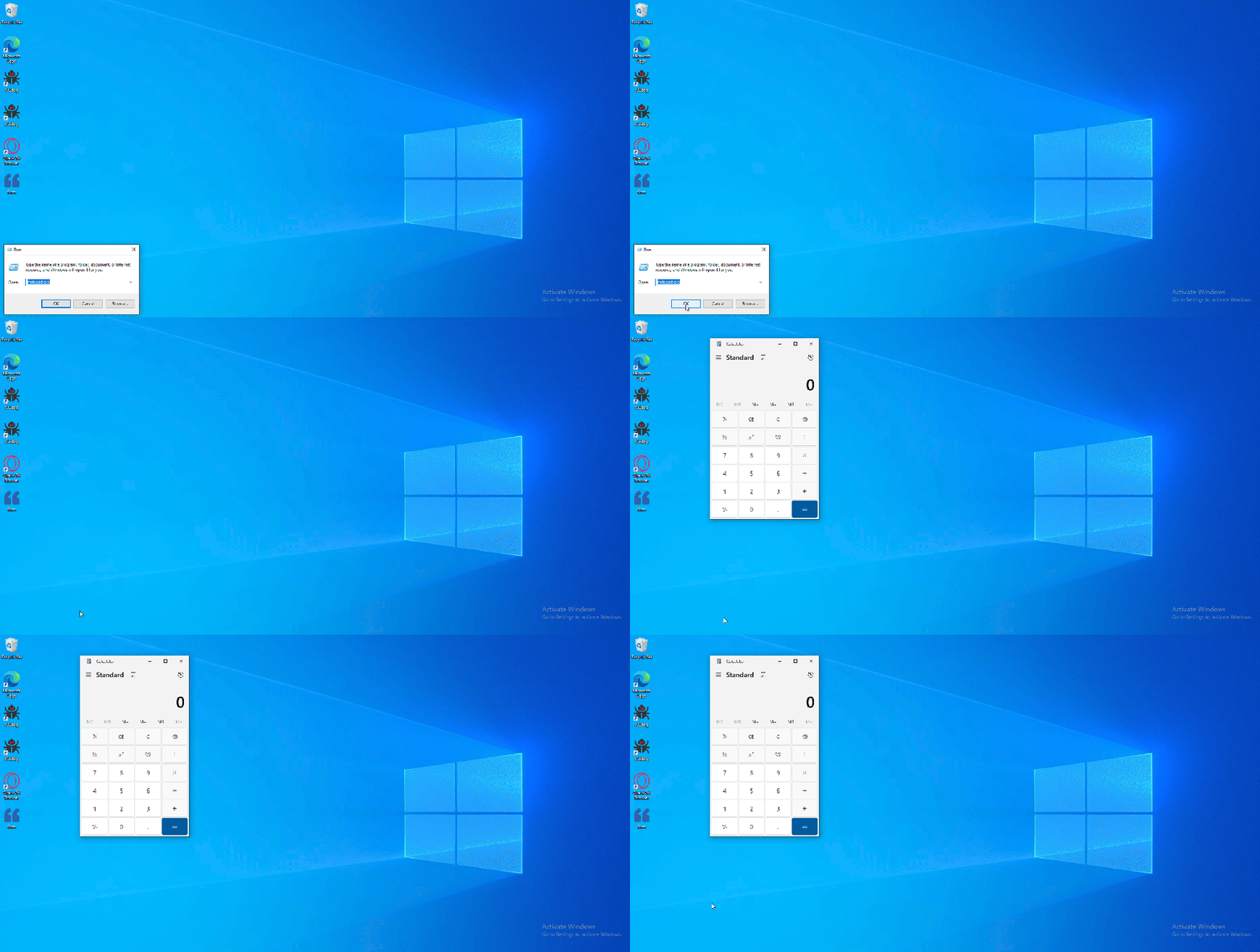
In summary, by modifying IFEO registry keys, malware authors can ensure their payload runs whenever a specified application is executed, granting persistence that blends with normal system activity. Common targets for IFEO hijacking include programs that launch automatically (for example, explorer.exe at user logon) or frequently used utilities. Notably, some malware even hijack system utilities like Task Manager (taskmgr.exe) via IFEO – either to persist or to block users from running those tools. In fact, setting an IFEO Debugger for Task Manager is a known tactic used by malware to prevent users from discovering or killing malicious processes.
The Role of Debug Object Hijacking
Under the hood, when an IFEO Debugger is set, Windows will spawn the specified debugger process with parameters to attach to the target program. This involves creating a debug object (a kernel-managed structure) that links the debugger and the would-be target process. The malicious “debugger” now controls execution: it can simply run independently or manipulate the target program’s execution.
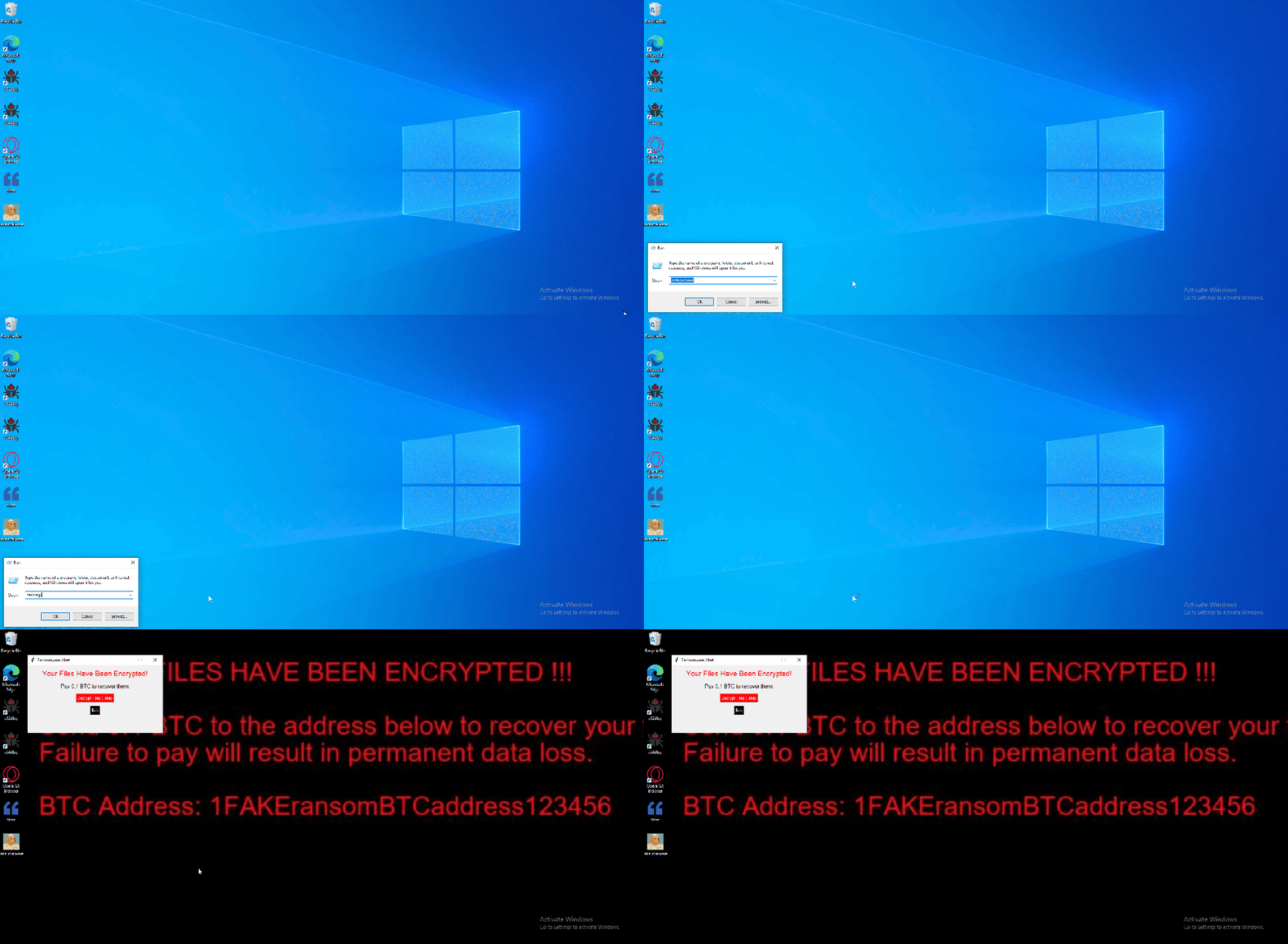
taskmgr.exe) hijacked via IFEO, launching a fake ransomware instead.Instead of the target application running normally, the OS invokes the debugger program (the malware) with the target’s name as an argument. For instance, an IFEO entry might cause C:\dbg\ntsd.exe -g notepad.exe to run when Notepad is started. In a hijack scenario, the malware might ignore the argument and carry out its own payload tasks. The original process may never actually initialize (as seen when Notepad was hijacked to launch Calculator in a demo).
The debugger process is launched with the intention to debug the target. If the target is a high-privilege process, the debugger (malicious code) may inherit those privileges or at least gain access to the target process’s context. This is one way IFEO hijacking can be used not just for persistence but also for privilege escalation. Adversaries have leveraged IFEO to attach to system processes and execute code with SYSTEM rights.
When a process is started under a debugger via IFEO, certain process creation flags are used internally (e.g., DEBUG_PROCESS). Security monitors can sometimes catch anomalies here – for example, a common system process spawning with debug flags or under an unexpected parent process may indicate a hijack. From the OS perspective, however, this entire sequence is permissible behavior for debugging, so no explicit error or alert is generated. Attackers essentially hijack the debug object relationship: the operating system thinks it’s facilitating a developer’s debugger, while it’s actually running malicious code.
Registry Modification Process for IFEO Persistence
Selecting a Target Executable
The attacker identifies a commonly executed program to ensure malware activation. Typical targets include:
- User login processes (
explorer.exe,userinit.exe) - System utilities (
dllhost.exe,taskmgr.exe) - Common applications (
notepad.exe,cmd.exe)
By selecting an executable that is either routinely invoked or can be easily triggered, attackers maximize their chance of persistence.
Modifying the IFEO Registry Key
Using Registry Editor, reg add, or API calls, the attacker creates a subkey under the IFEO path named after the target executable. If the subkey already exists, it is modified to include a Debugger value pointing to the malicious executable.
Example command:
reg add "HKLM\SOFTWARE\Microsoft\Windows NT\CurrentVersion\Image File Execution Options\notepad.exe" /v Debugger /t REG_SZ /d "C:\malware\backdoor.exe" /f
Once this value is set, any attempt to launch notepad.exe will instead execute backdoor.exe, fully hijacking execution flow.
Alternate IFEO Abuses
In addition to the Debugger key, attackers can exploit other IFEO features to inject malicious payloads without relying on direct process redirection.
- Application Verifier DLL Injection:
Attackers set the GlobalFlag registry value to0x100, enabling Application Verifier, and specify aVerifierDllsentry pointing to a rogue DLL. This forces the DLL to load into the target process at launch:
reg add "HKLM\SOFTWARE\Microsoft\Windows NT\CurrentVersion\Image File Execution Options\notepad.exe" /v VerifierDlls /t REG_SZ /d "C:\malware\inject.dll" /f
Unlike the Debugger method, this technique achieves DLL injection persistence while evading detection by tools like Autoruns.
- Silent Process Exit Hijacking:
Attackers configure Silent Process Exit settings so that when a target process terminates, a malicious process is executed in response:
reg add "HKLM\SOFTWARE\Microsoft\Windows NT\CurrentVersion\SilentProcessExit\notepad.exe" /v MonitorProcess /t REG_SZ /d "C:\malware\backdoor.exe" /f
This technique ensures that every time Notepad exits, backdoor.exe is launched automatically.
Detection Techniques and Forensic Analysis
Registry Inspection
The most direct way is to check the IFEO registry keys for unusual entries. Incident responders or IT administrators should audit the Image File Execution Options registry hive for any subkeys with a Debugger value or other suspicious configurations. Legitimate uses of IFEO (outside of developer labs) are rare, so any presence of Debugger entries on production systems warrants scrutiny. For example, if HKLM\...\Image File Execution Options\calc.exe has a debugger pointing to an unknown file path, this is a red flag.
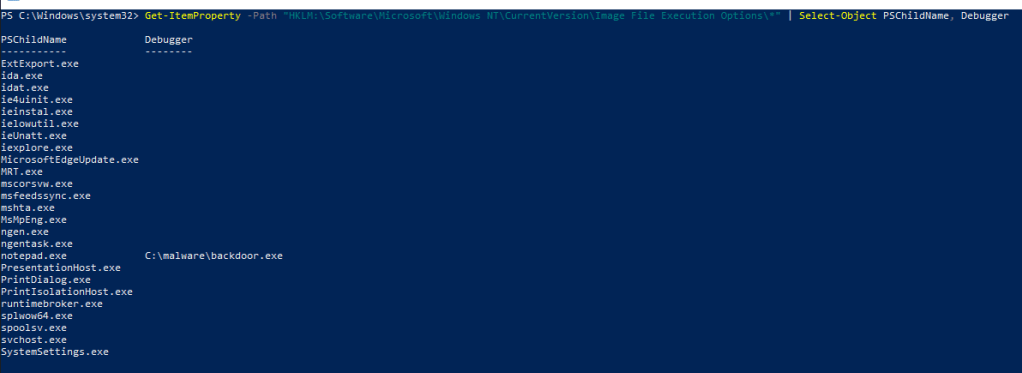
notepad.exe is hijacked to launch C:\malware\backdoor.exe, indicating unauthorized execution redirection.Baselining
Maintain a baseline of approved IFEO entries (if any). Comparing current registry settings to a clean baseline can reveal additions. Some legitimate software might use IFEO for valid reasons (e.g., a debugger or compatibility fix), but these should be documented. Any deviation from the baseline or any IFEO pointing to non-standard executables/DLLs should trigger an alert.
Because IFEO hijacking ultimately causes abnormal process launch patterns, behavior monitoring can catch it. Security logs and EDR telemetry should be examined for:
Unexpected Parent-Child Relationships
If an application A is commonly launched by the user or the system, but in reality you observe another process B starting in its place, that’s suspicious. For instance, seeing wscript.exe spawn when dllhost.exe was supposed to start indicates an IFEO debugger redirection.
Processes with Debug Flags
Processes created with the DEBUG_PROCESS flag or similar can be a sign of IFEO usage. Monitoring APIs or using Sysmon with an appropriate configuration can log when a process is created with debugging. MITRE (T1546.012) suggests monitoring for creation flags indicative of debugging as a detection measure. Likewise, if a normally benign process (like explorer.exe) is started in suspended mode awaiting a debugger, it may indicate a debugger was attached.
Command Line Analysis
The command line of the launched debugger process might include the target process name as an argument. For example, a malware set as IFEO debugger for svchost.exe might be launched with command line "malicious.exe svchost.exe ...". EDR solutions that record command-line parameters can pick this up. Unusual command-line usage of system tools (like rundll32, wscript, etc.) at times they normally wouldn’t run might also correlate with IFEO triggers.
Event Logs and Audit Policies
Enabling auditing on registry keys related to IFEO can generate Windows Event Log entries when they are modified. For instance, enabling auditing on HKLM\SOFTWARE\Microsoft\Windows NT\CurrentVersion\Image File Execution Options will log an event if a new value or subkey is added. Similarly, if GFlags (the Microsoft Global Flags utility) is used to set IFEO options, command-line auditing or PowerShell logs may capture that usage.
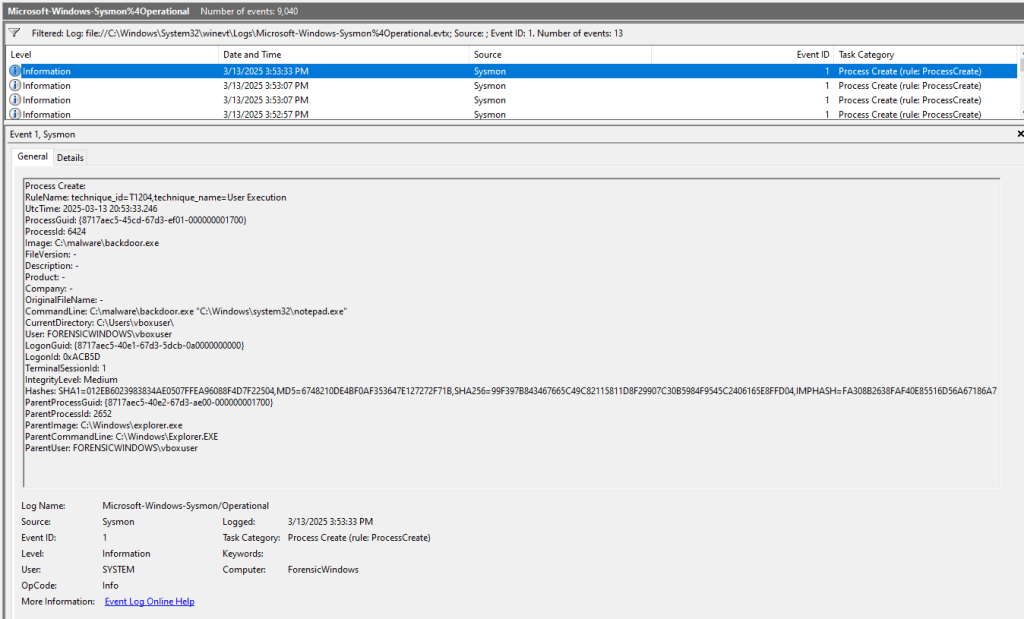
notepad.exe execution, which instead launched C:\malware\backdoor.exe due to an IFEO Debugger entry.PEB Analysis
Analyzing the Process Environment Block (PEB) can reveal IFEO hijacking by checking the BeingDebugged flag, which indicates whether a process is running under a debugger. If ReadImageFileExecOptions is set to No, but the process is still being debugged, this suggests that a silent IFEO hijack has been used to force execution through an unauthorized debugger, potentially redirecting execution flow for persistence or privilege escalation.
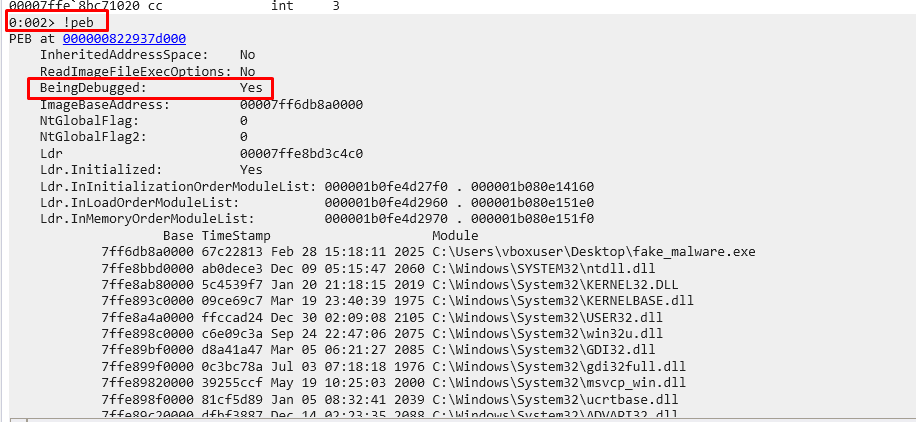
BeingDebugged: Yes despite ReadImageFileExecOptions: No, indicating forced execution under an unauthorized debugger, a key sign of IFEO abuse.Autoruns
Security tools that enumerate image hijacks can reveal IFEO entries under HKLM\Software\Microsoft\Windows NT\CurrentVersion\Image File Execution Options and Wow6432Node, highlighting executables with Debugger values pointing to suspicious binaries (e.g., C:\malware\backdoor.exe). If a commonly used application like notepad.exe is set to launch an unknown or unverified file, this strongly indicates potential compromise. Additionally, identifying timestamps of modification can help determine when the hijack was established.
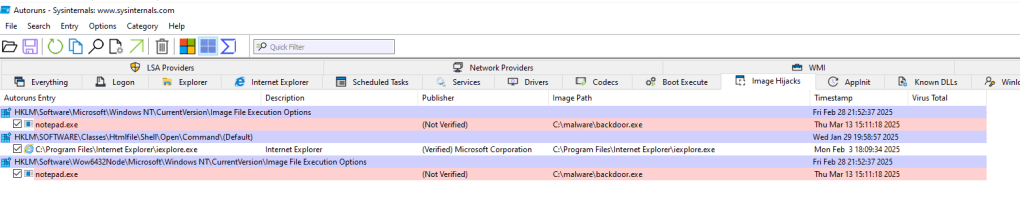
notepad.exe, redirecting execution to C:\malware\backdoor.exe, an indicator of persistence abuse.Security Product Detections
Modern AV/EDR products often look for IFEO hijacks. Malwarebytes, for instance, flags any unknown program setting an IFEO debugger as “RiskWare.IFEOHijack”. It specifically watches for registry writes under the IFEO key and checks if a debugger value is present.
Forensic Examination
In a digital forensics scenario, the investigator should always dump the registry hives from the system and search for the string "Image File Execution Options". Likewise, they should search for any suspicious file paths that might be used as debuggers. The Windows registry is an authoritative source: if a Debugger or related value exists, it will be in the registry data. Use RegRipper to parse and find IFEO entries, and analyze the timeline of registry events to reveal when the IFEO was added and by what process.
Mitigation and Defense Strategies
Preventing IFEO-based persistence is challenging because it exploits legitimate OS functionality. There is no simple switch to disable Image File Execution Options globally without affecting developer tools or system diagnostics. However, implement several defensive measures to reduce the risk and impact:
- Restrict Administrative Privileges:
Since creating IFEO entries requires writing to HKLM (or modifying global debugger settings), an attacker typically needs administrative rights. Enforcing the principle of least privilege can help; standard users should not have rights to alter HKLM settings. Limiting admin access and using tools like User Account Control (UAC) can make it harder for malware running as a user to elevate and set IFEO persistence.
- Application Whitelisting / Code Signing Policies:
Employ application control solutions such as Microsoft WDAC/AppLocker to restrict what binaries can execute or be assigned as debuggers. For instance, if only approved debugger tools (e.g., Visual Studio’s debugger or Sysinternals) are allowed to run, an arbitrary malware binary being set as a debugger might be blocked from executing. Therefore, whitelisting needs to be coupled with other controls (like script control or command-line restrictions for legitimate tools).
- Group Policy and Registry Hardening:
Although you cannot disable IFEO, you can harden the registry via permissions. Ensure that only Trusted Installer or Administrators have write access to the IFEO keys (by default they should). Some security templates recommend setting specific ACLs on sensitive registry paths. Regularly backup and/or monitor critical registry keys so changes can be quickly identified and reverted.
- Endpoint Monitoring and Response:
Use EDR solutions that can block or warn on suspicious registry changes. Many EDRs allow creation of custom rules; an organization could define a rule to detect the creation of an IFEO Debugger value and either alert or prevent it.
- Removal and Recovery:
If an IFEO hijack is discovered, removing it is straightforward: delete the malicious subkey or the Debugger/Verifier values from the registry. However, it’s crucial to also remove the malware file that it pointed to, or the attacker could re-establish the entry.
Block Modifications to IFEO via Group Policy
One of the easiest options to block modification to the registry key in your organization would be to block Image File Execution Options in your organization's Group Policy. This prevents unauthorized changes, including debugger hijacking techniques often used by malware for persistence. By restricting access through Group Policy, administrators can ensure that no user or process can modify IFEO entries, effectively mitigating security risks and maintaining system integrity.
Guide
Open Group Policy Management
- Press
Win + R, typegpmc.msc, and press Enter. - Expand Forest → Domains → yourdomain.local.
- Right-click Group Policy Objects and click New.
- Name it "Block IFEO Key" and click OK.
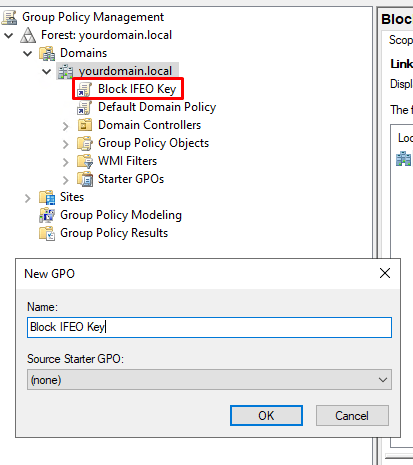
Edit the GPO
- Right-click Block IFEO Key and click Edit.
- Navigate to Computer Configuration → Windows Settings → Security Settings → Registry.
- Right-click Registry and select Add Key.
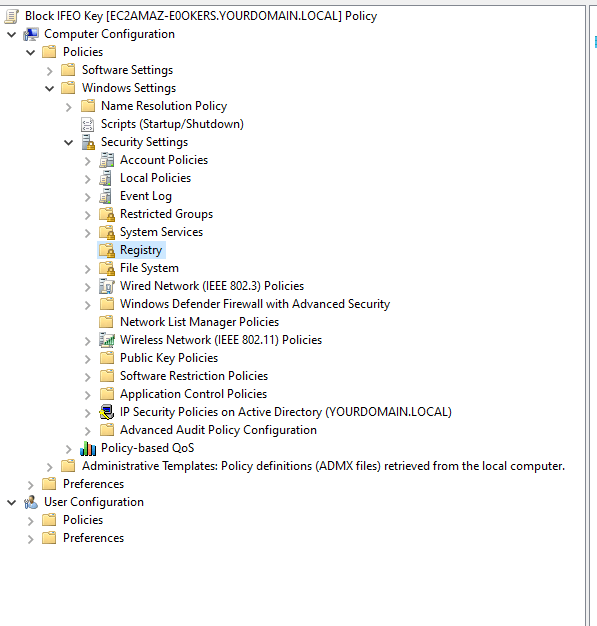
Select the IFEO Registry Key
- In the Select Registry Key window, navigate to:
HKEY_LOCAL_MACHINE\SOFTWARE\Microsoft\Windows NT\CurrentVersion\Image File Execution Options - Select "Image File Execution Options" and click OK.
Configure ACL (Permissions)
- Select "Replace existing permissions on all subkeys with inheritable permissions".
- Click Edit Security….
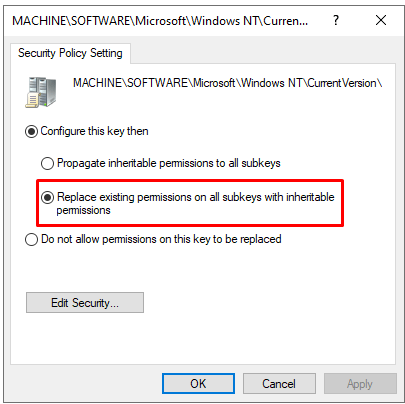
Deny Modification Access
- In the Permissions window, select Users (or a specific group).
- Under Permissions, check Deny for:
- Set Value (blocks modifications)
- Create Subkeys (prevents new entries)
- Delete (prevents deletion)
- Write DAC (prevents changing permissions)
- Click OK and apply the settings.
Apply the GPO
- Close the Group Policy Editor.
- In Group Policy Management, right-click yourdomain.local.
- Click Link an Existing GPO, select "Block IFEO Key", and click OK.
Force the Policy Update
- Open PowerShell or CMD and run:
gpupdate /force - Reboot the machine to apply the policy.
Test the Restriction
- Open Registry Editor (
regedit.exe). - Try modifying or adding a subkey under:
HKEY_LOCAL_MACHINE\SOFTWARE\Microsoft\Windows NT\CurrentVersion\Image File Execution Options - You should see "Access Denied", confirming the GPO is working.
WDAC Deployment: Blocking reg.exe and regedit.exe
Another approach - although overkill - would be to leverage Windows Defender Application Control (WDAC) to restrict what executables can run on a system. In my implementation, I deployed WDAC to block key registry key utilities like reg.exe and regedit.exe, which are commonly targeted by attackers to modify critical IFEO settings.
What is WDAC?
Windows Defender Application Control (WDAC) is a security feature in Windows that enables administrators to control which applications, drivers, and binaries are allowed to run on a system. By establishing a set of detailed rules—such as those based on file hashes, digital signatures, and file paths—WDAC enforces a "default deny" approach that blocks any software not explicitly permitted. This level of control is particularly effective in reducing the attack surface by preventing unauthorized or malicious code from executing.
Guide
For this guide, I used a Windows Server 2022 Datacenter Image. I downloaded the following dependencies in order to install the WDAC Wizard:
- https://github.com/microsoft/microsoft-ui-xaml/releases/download/v2.8.6/Microsoft.UI.Xaml.2.8.x64.appx
- https://github.com/QuangVNMC/LTSC-Add-Microsoft-Store/blob/master/Microsoft.VCLibs.140.00.UWPDesktop_14.0.33728.0_x64__8wekyb3d8bbwe.Appx
- https://learn.microsoft.com/en-us/windows/msix/app-installer/install-update-app-installer
- https://dotnet.microsoft.com/en-us/download/dotnet/thank-you/runtime-desktop-8.0.14-windows-x64-installer?cid=getdotnetcore
To deploy Windows Defender Application Control via Group Policy
- Computer Configuration → Administrative Templates → System → Device Guard → Deploy Windows Defender Application Control
- File Path:
C:\Policies\RegistryBlock.p7b
WDAC Wizard and Creating the Policy
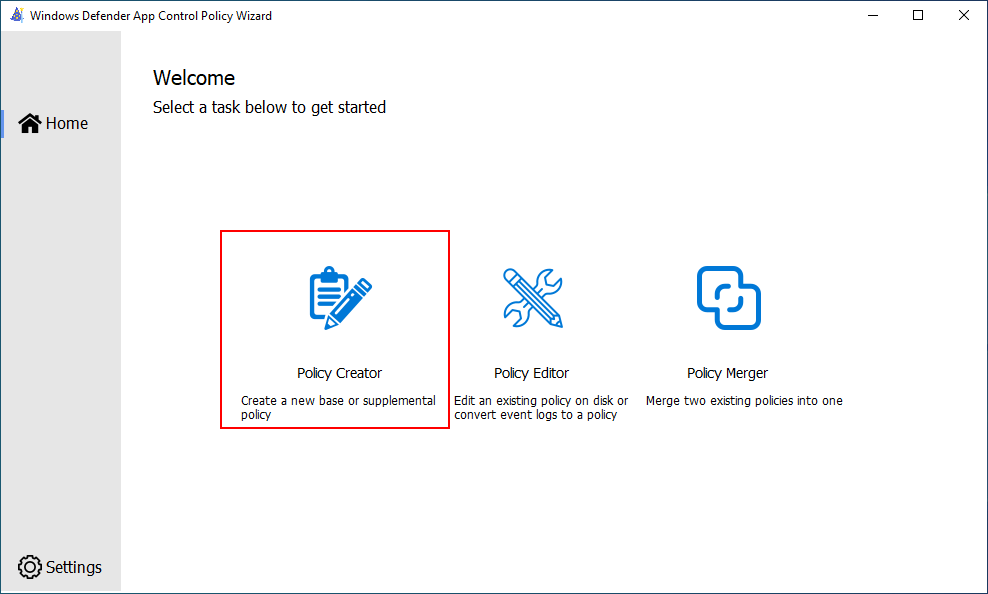
- Open the
Windows Defender App Control Policy Wizardapplication - Select the
Policy Creator
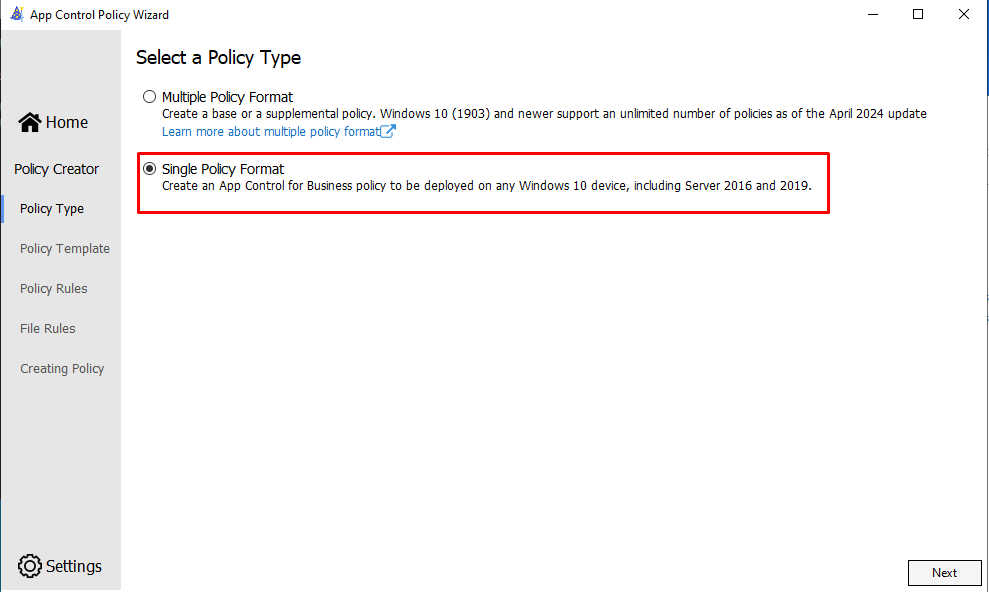
3. Select Single Policy Format
4. Select the Default Windows Mode and Name the Policy RegistryBlock and the File Location in C:\Policies.
The Group Policy Object "BLOCK IEFO KEY" under "yourdomain.local" is set up to manage IP Security Policies on Active Directory, retrieved from the local computer.
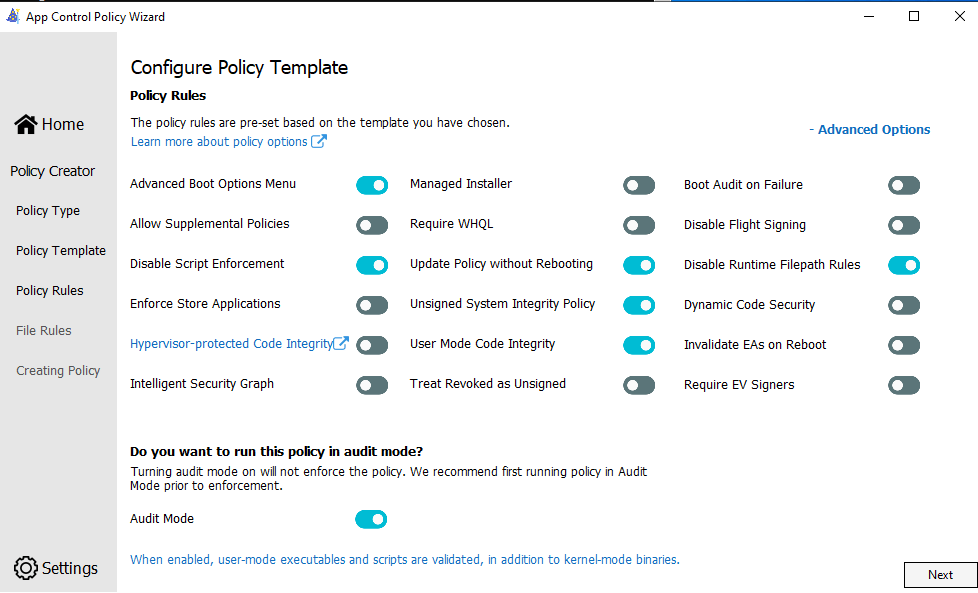
5. Select All of these Options, making sure to Enable Audit Mode, or else the policy will take place with no testing capability. You can edit this later to enable Blocking.
- If you only see two columns, click on Advanced Options.
- Make sure the
Disable Runtime Filepath Rulesis checked.
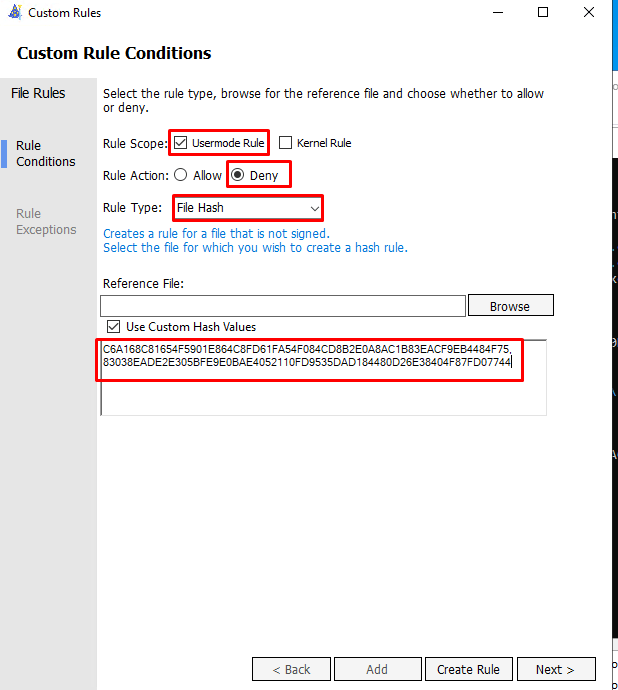
6. Here is where we are going to block the two registry modification binaries. Click on + Add Custom. I choose to block the file hash because File Paths are not concrete.
- Use
Get-FileHashonC:\Windows\System32\reg.exeandC:\Windows\regedit.exeand block the two values.
- You can decide if you want to block known vulnerable/malicious drivers by checking
Merge with Recommended User Mode Block RulesandMerge with Recommended Kernel Block Rules.
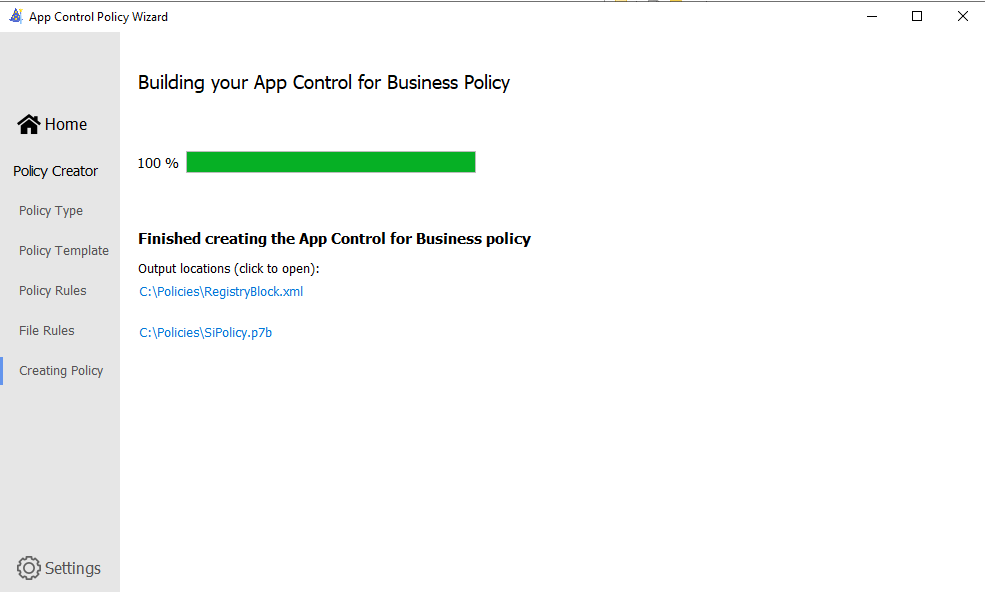
7. Your Policy is created.
- Move the SiPolicy.p7b from C:\Policies to C:\Windows\System32\CodeIntegrity.
- Reboot the Machine for the block to take place.
Testing
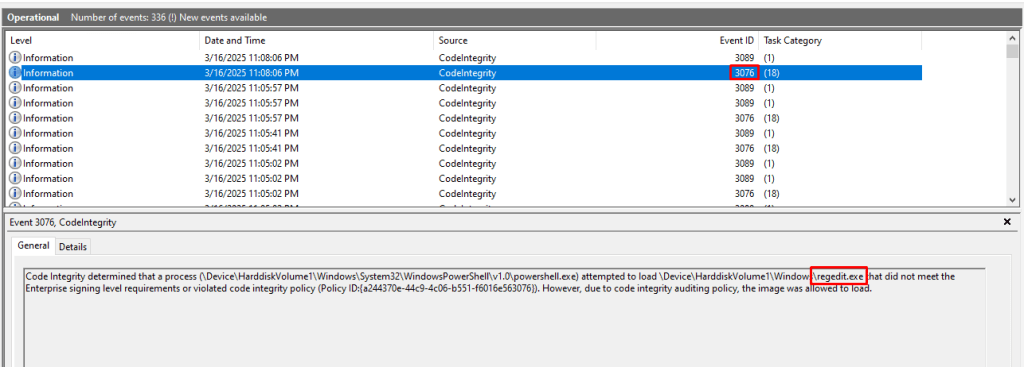
After the system has rebooted, run Start-Process "C:\Windows\regedit.exe" in an elevated Powershell Terminal.
Now, open the Windows Event Viewer and browse to Application and Services Logs > Microsoft > Windows > CodeIntegrity > Operational
Filter the event log for event id 3076 (or 3077 if the policy is in enforce mode). If there is an application that was run that either would have been or was blocked by the policy, then an event should have been created here.
If you have an event that blocks regedit.exe then you have successfully completed the registry block.
Enforcement
If you have decided to enforce the two registry blockers in your organization, here's how:
- Load into the App Control Policy Wizard and Select the
Policy Editor. - Select the XML File from
C:\Policies, Click Next. - In the Policy Rules, turn off
Audit Mode. Continue to build the policy, and Reboot.
Conclusion
Image File Execution Options hijacking (Debug Object Hijacking) represents a clever abuse of Windows debugging facilities to achieve persistent malware execution. By simply manipulating registry keys, attackers can covertly insert themselves into the normal process launch chain of the operating system. This technique provides a reliable and often stealthy foothold—malicious code runs under the guise of legitimate processes and can inherit their privileges. Continuous auditing and security awareness of such mechanisms are essential to defend against persistence techniques that “live off the land.” By understanding how Debug Object Hijacking via IFEO works and learning from real-world abuses of this technique, security teams can better secure Windows environments against this form of attack.